

There are times when need to hide stuff like your personal files from your family or anyone who uses your computer. Most guides will tell you to go to properties of the file and hide it from there. I gonna tell you people something different and sort of new.
How to hide your files:-
Step 1:- Go to file directory you want to hide.
For example in this case, we go to D:/Show and want to hide the file ‘Hide this’.

Step 2:- Now hold Shift key and right click on black space.
Step 3:- Click on ‘Open Command Prompt here’ / ‘Open PowerShell window Here’.
Step 4:- Now in the command prompt window type the code
“Attrib +h +s +r ‘file name’ “
to hide your file.
For example I want to hide the folder ‘Hide this’ then I type
“Attrib +h +s +r ‘Hide this’ ” without the “”.
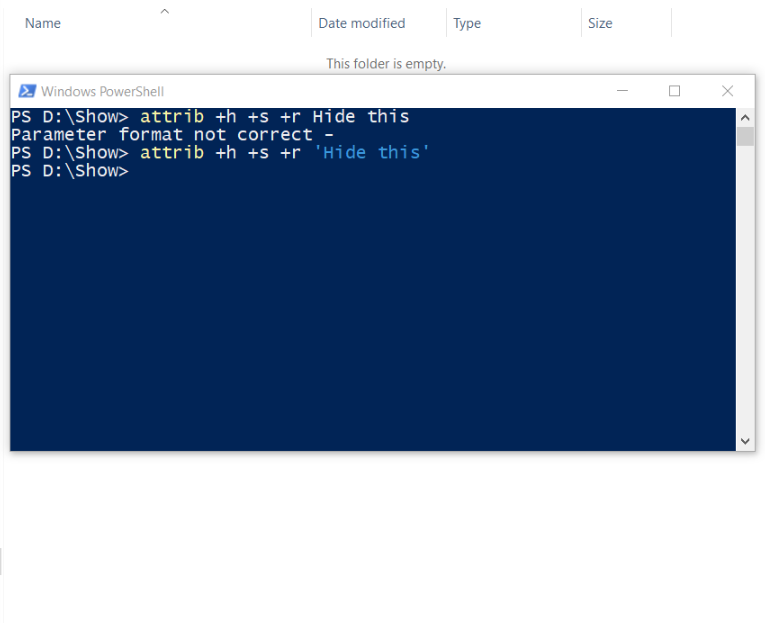
Now if you check your folder you won’t be able to find the file. Even when you enable view your hidden files, you won’t be able to find it.
Now you must be wondering, how will I be able to ever see my files again? Well, for that repeat the above steps and just replace the ‘+’ with ‘-‘ in the command to see your files again that is
“Attrib -h -s -r ‘file name’ “.
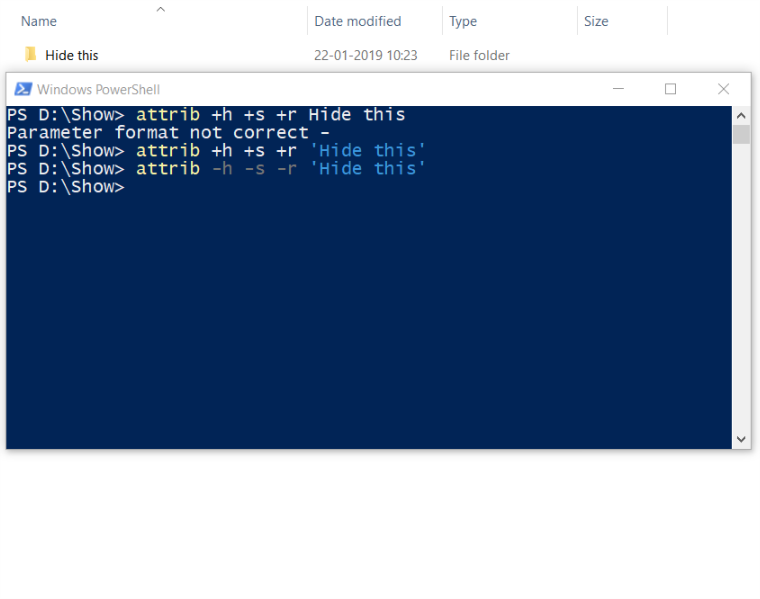
Isn’t this a great to hide your ‘Personal’ files from anyone. However its great downside though is that you have to remember the name of your file in order to see them again unlike the hide option in which with just one click you are able to see your files again.
So if you liked the article then please do hit that like button and let us know your thoughts in the comments section below.






 TechnophiltsTech